Overview
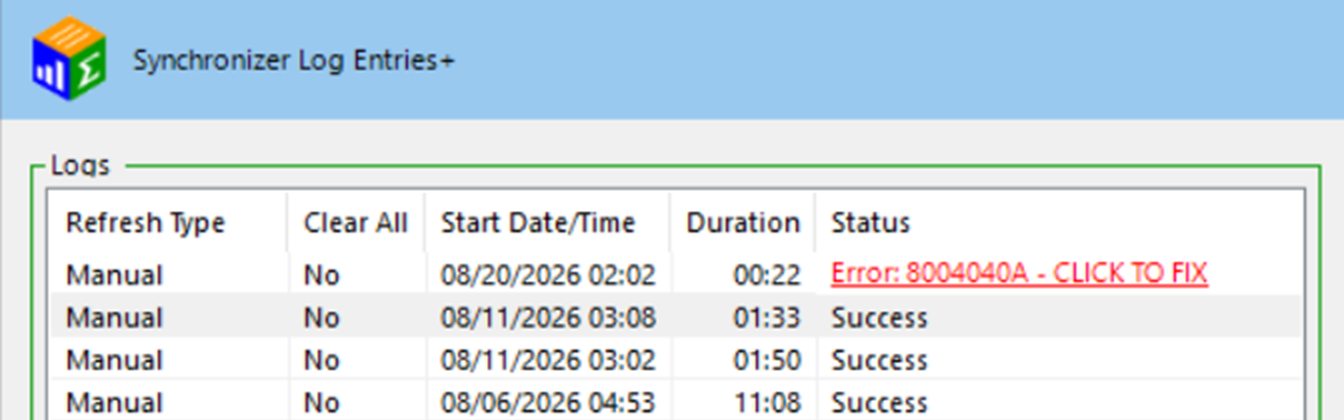
In the QQube Configuration Tool, the synchronization log list may display a red entry similar to Error: 8004040A - CLICK TO FIX. Select that red status link to open this guide.
Resolve every failed entry
A later synchronization that reports Success does not mean this earlier error corrected itself. The failed entry must still be reviewed and resolved.
The synchronization log for this entry contains a message similar to the following:
Synchronization log message
<<<<<<<<<<<<<<<<<<<<<< 07/28/2023 06:44:57 PM >>>>>>>>>>>>>>>>>>>>>>
QBXMLSession_OpenConnection
File named Q:\Onion Construction Group LLC.QBW is not opened.
BeginSession
Error Code: 8004040A
A QuickBooks company data file is already open and it is different from the one requested.
<<<<<<<<<<<<<<<<<<<<<<<<<<<<<<<<<<<<<<<<<<<<<<<<<<<<<<<<<<<<<<
What the Error Means
Error 8004040A comes directly from the Intuit Software Development Kit. QuickBooks currently has one company file open, but QQube is requesting a different company file.
The most common causes are an incorrect company file already being open, more than one QuickBooks instance running under the synchronization user, or a company file name or location that has changed since it was added to QQube.
Resolution
Complete these checks in order.
1. Close Other QuickBooks Instances
Under the Windows user that runs the QQube synchronization, close every open QuickBooks window. Start only one copy of QuickBooks.
2. Confirm the Correct Company File
Make sure QuickBooks is either open to the company file QQube is requesting or open to the No Company Open window.

3. Correct a Changed Company Filename or Path
Perform this work while logged in to the Windows user where QQube was installed.
If the company filename changed, add the company file again using its current name and then remove the obsolete company entry. The filename cannot be edited directly in the QQube Configuration Tool.
If the company file was moved, update QQube to use the current company file path.


4. Prepare QuickBooks for Multiple Company Files
If QQube synchronizes multiple company files, leave QuickBooks open to the No Company Open window before synchronization begins. The Intuit SDK cannot close a company file that was opened manually.
5. Confirm the Multi-User Synchronization Session
In a Multi-User implementation, run the Synchronizer only under the dedicated Windows synchronization user where QQube was installed. A regular server or Remote Desktop user is not the synchronization user.
For a local network server installation, review Multi-User Local Network. For a Remote Desktop or hosted environment, review Multi-User Remote Desktop Environment.
Expected Result
QuickBooks is open to the correct company file or the No Company Open window, the QQube company filename and path are current, and the synchronization completes without another Error 8004040A entry.
Was this article helpful?
That’s Great!
Thank you for your feedback
Sorry! We couldn't be helpful
Thank you for your feedback
Feedback sent
We appreciate your effort and will try to fix the article