Overview
In the QQube Configuration Tool, the synchronization log list may display a red failed entry when QuickBooks Enterprise Custom Reporting cannot run because the company file is in Single-user Mode.
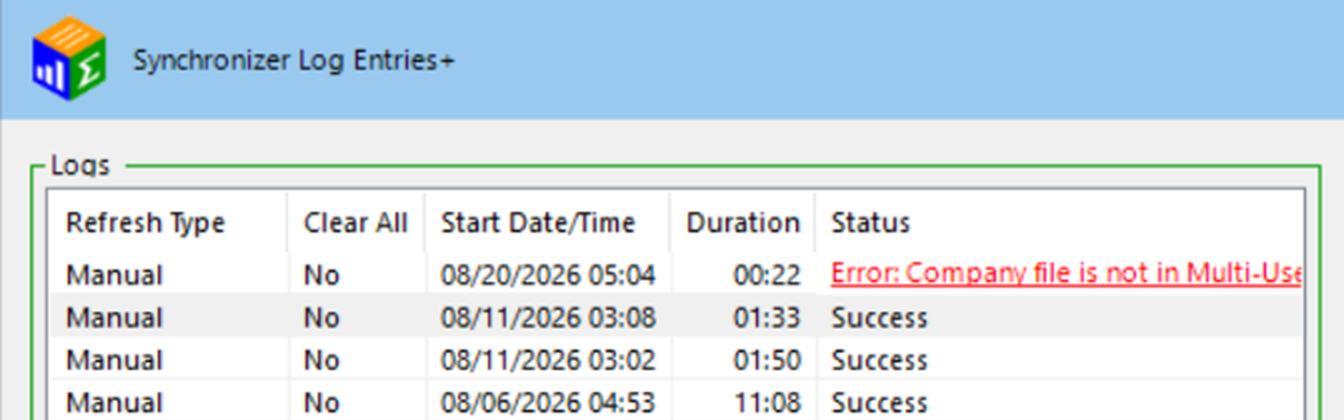
Resolve every failed entry
A later synchronization that reports Success does not mean this earlier error corrected itself. The failed entry must still be reviewed and resolved.
The synchronization log for this entry contains a message similar to the following:
Synchronization log message
Sybase Connection 10/15/2027 02:00:06 AM Status:
Failed - Trying to use Custom Reporting and Company file is not in Multi-User mode
<<<<<<<<<<<<<<<<<<<<<< 10/15/2027 02:00:06 AM >>>>>>>>>>>>>>>>>>>>>>
QQubeImportWorker_RunImportForThisCompany
<<<<<<<<<<<<<<<<<<<<<<<<<<<<<<<<<<<<<<<<<<<<<<<<<<<<<<<<<<<<<
What the Error Means
This condition applies only to QuickBooks Enterprise implementations that use Custom Reporting.
QQube cannot use Custom Reporting while the QuickBooks company file is open in Single-user Mode. The company file must be available in Multi-user Mode before synchronization can continue.
This usually happens when someone opens the company file in Single-user Mode before synchronization begins or uses Single-user Mode on the QQube server for an administrative task.
Resolution
Required condition
The QuickBooks company file must be able to open in Multi-user Mode before QQube starts the synchronization.
Multi-User Server Installation
- Log in to the dedicated Windows synchronization user where QQube is installed.
- Close the QuickBooks company file if it is open in Single-user Mode.
- Leave QuickBooks open with no company file selected.
- Start the QQube synchronization again.
With the recommended Multi-User installation, QQube opens the company file in Multi-user Mode automatically.
Single-User Workstation Installation
- Open the QuickBooks company file.
- Confirm that QuickBooks is operating in Multi-user Mode.
- Start the QQube synchronization again.
Expected Result
The QuickBooks company file is available in Multi-user Mode, Custom Reporting becomes available, and the synchronization completes without another Custom Reporting Multi-user Mode error.
Was this article helpful?
That’s Great!
Thank you for your feedback
Sorry! We couldn't be helpful
Thank you for your feedback
Feedback sent
We appreciate your effort and will try to fix the article