Overview
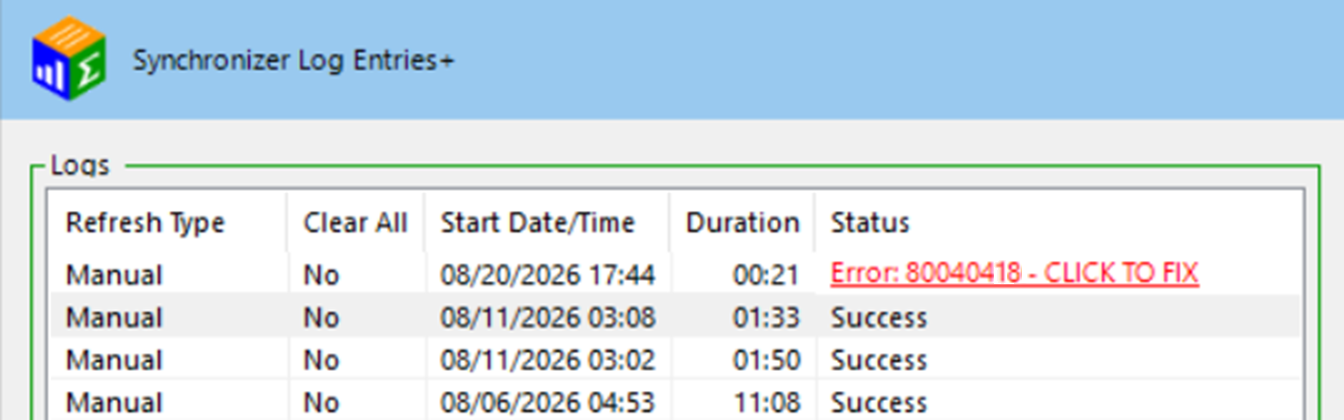
In the QQube Configuration Tool, the synchronization log list may display a red entry similar to Error: 80040418 - CLICK TO FIX. Select that red status link to open this guide.
Resolve every failed entry
A later synchronization that reports Success does not mean this earlier error corrected itself. The failed entry must still be reviewed and resolved.
The detailed synchronization log for this entry contains a message similar to the following:
Detailed synchronization log message
<<<<<<<<<<<<<<<<<<<<<< 10/15/2027 06:44:57 PM >>>>>>>>>>>>>>>>>>>>>>
BeginSession
Error Code: 80040418
This application has not accessed this QuickBooks company data file before. Only the QuickBooks administrator can grant an application permission to access a QuickBooks company data file for the first time.
<<<<<<<<<<<<<<<<<<<<<<<<<<<<<<<<<<<<<<<<<<<<<<<<<<<<<<<<<<<<<
What the Error Means
Error 80040418 comes directly from the Intuit Software Development Kit. QuickBooks has not granted QQube permission to access the requested company file.
This can happen when QQube was never authorized for the company file, the authorization was removed, the company file was replaced with a copy that does not contain the authorization, or another QQube Synchronizer is running under the wrong Windows user.
Resolution
Complete these checks in order.
1. Confirm the QuickBooks Permission
Open the affected QuickBooks company file as the QuickBooks Administrator.
Select Edit > Preferences > Integrated Applications > Company Preferences.
Confirm that QQube appears in the list of authorized applications.

2. Re-establish the QuickBooks Permission
If QQube is missing or the permission is incorrect, remove the company file from the QQube Configuration Tool and add it again during the same session.
Complete the authorization while signed in to QuickBooks as the Administrator.
Review Create Connection Users for the required QuickBooks user and permission setup.

3. Stop Additional QQube Synchronizers
Confirm that only one QQube Synchronizer is running.
In a Multi-User implementation, the Synchronizer must run only under the dedicated Windows synchronization user where QQube was installed. A regular server or Remote Desktop user is not a synchronization user.
Confirm the QQube server is configured using the applicable installation guide: Multi-User Local Network or Multi-User Remote Desktop Environment.
Expected Result
QuickBooks shows QQube as an authorized integrated application, only the correct QQube Synchronizer is running, and the synchronization completes without Error 80040418.
Was this article helpful?
That’s Great!
Thank you for your feedback
Sorry! We couldn't be helpful
Thank you for your feedback
Feedback sent
We appreciate your effort and will try to fix the article